How to View Instagram Posts and Profiles Without an Account
Guides · 04 Nov 2026
How to View Instagram Posts and Profiles Without an Account
Instagram profiles are often the first place people look when they hear about a creator, a shop, or a local business. You may want to check a public profile’s photos, read a caption, or see what someone posted lately, all without creating an account or signing in.
This guide explains, in plain terms, what you can and cannot see on Instagram without an account, how public profiles work in a browser, which methods are safest, and what to do when a profile or post will not load.
What You Can See on a Public Profile Without an Account
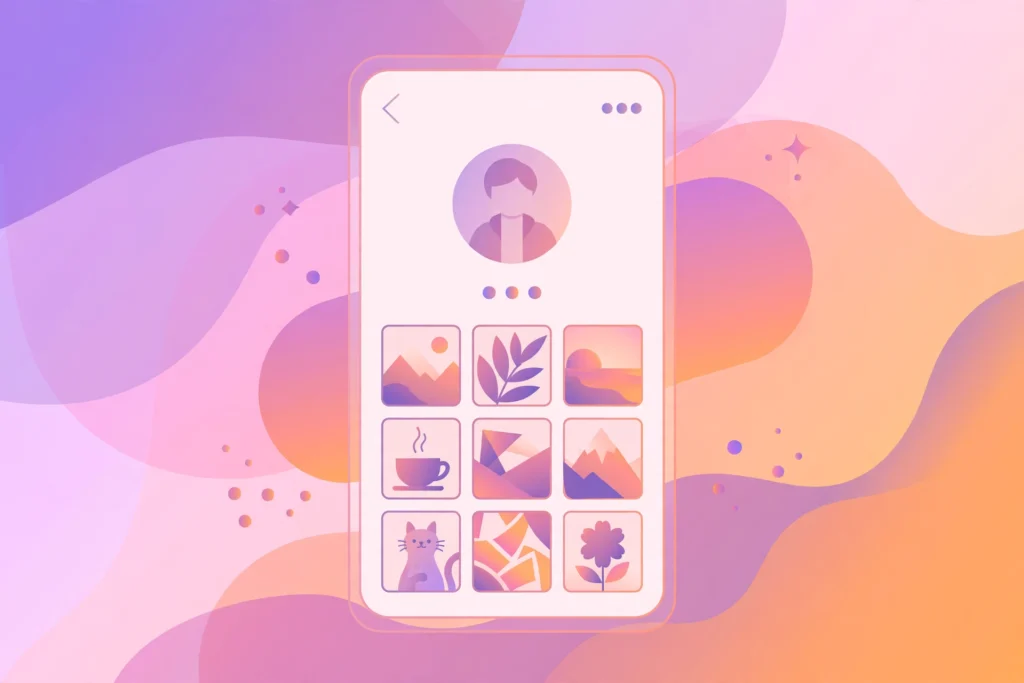
A public profile is open to anyone who visits it. Without signing in, you can usually see the profile photo, the bio, the follower counts, and the grid of photos and videos the account has shared. Tapping a post normally opens it with its caption.
Some parts of a profile are limited without an account. You generally cannot follow the account, like or comment on posts, send a message, or save a post to a collection. Stories and highlights may also ask you to sign in.
The key point is the account’s privacy setting: everything in this guide applies to public accounts only. Private accounts keep their posts hidden from anyone who is not an approved follower, and no legitimate browser method changes that.
Can You Browse Instagram Without Logging In?
For public profiles, yes, in the usual sense. Instagram lets anyone open a public profile link in a browser and look at its posts. You do not need an account to read a public caption or view a public photo, and you do not need to install the app for that.
That access does have limits. Instagram may show a login prompt after a short while, especially if you browse many profiles in one session, and it may block some interactions entirely for signed-out visitors.
If a site or app promises full Instagram access without an account, including private profiles, messages, or deleted posts, treat that promise as a warning sign. A trustworthy approach never asks for your Instagram password, a payment, or an unexpected install just to view a public profile.
Method 1: Open a Public Profile in Your Browser
This is the simplest method, and it works only for public accounts.
- Note the exact public username you want to view, or find the profile link from a website, article, or search result you trust.
- Open the profile link in your browser. The profile page should show the bio, the post grid, and the account’s public details.
- Tap a post to open it and read its caption. Move back to the grid to continue browsing other posts from the same account.
- If Instagram shows a login prompt, stop there rather than looking for a way around it. You have already seen what signed-out browsing allows for that session.
- Do not enter your Instagram password on any third-party page that appears during this process. Viewing a public profile never requires it.
Method 2: View Public Posts Without Saving Anything
Viewing and saving are two different things, and for most people viewing alone is enough. A browser visit lets you look through a public profile’s posts without installing an app, creating an account, or storing files on your device.
This is also the lower-risk option: nothing is downloaded or uploaded, and you leave no file behind. If you only want to catch up on recent posts, open the profile, read what you need, and close the tab when you are done.
If you do want to keep something for later, the same cautions apply: keep it for personal use only, do not repost it as your own, and do not share it without the creator’s permission. For the related case of saving short video clips, see our guide on how to download Instagram reels anonymously, which covers the same public-only, no-login principles.
Method 3: Find a Specific Post or Profile Without an Account
Sometimes you are looking for one particular post, such as a product photo or an announcement, rather than browsing a whole profile.
- From a direct link: If someone sent you a link to a public post, opening it in your browser is the most reliable route. The post should load with its caption, as long as the account is still public and the post has not been deleted.
- From a search engine: Searching for the public username together with a few words from the caption can surface the profile or the post. Results vary, since not every post is indexed, but well-known public accounts usually appear.
- From the account’s own website: Many businesses and creators link their Instagram profile from their website. That link is usually the safest way to reach the genuine profile, rather than a similarly named copy.
Be careful with lookalike usernames: a single changed letter can lead to a different account, so check the profile photo and bio before assuming you found the right account.
Posts and Profiles on iPhone, Android and PC
On iPhone
Public profiles are easiest to view in a browser, since no app install is needed. If a link opens in the app and asks you to sign in, copy it and open it in your browser instead.
On Android
The same browser approach applies. If your phone opens links in the app by default, use the browser option to open the link there instead.
On PC
A larger screen makes browsing a post grid much easier, since you can see many posts at once and read captions without tapping through small images. To keep a note of a profile, bookmark its genuine page rather than saving screenshots of posts you do not own.
Why Some Profiles or Posts Do Not Load, or Appear Empty
- The account is private: Private profiles are hidden from signed-out visitors entirely, so their posts will not appear at all.
- The post was deleted: Creators can remove a post at any time, and once it is gone, a legitimate viewer cannot restore it.
- The username changed: If an account changed its username, an old link or saved search may lead nowhere. Search for the account’s current name instead.
- Login prompts: Instagram may ask signed-out visitors to log in after a period of browsing. This is a platform limit, not a profile problem.
- Temporary outages: Short outages and slow loading happen; waiting and trying again later usually works better than reloading repeatedly.
- Restricted content: Some posts carry age or sensitivity limits and may not display fully to signed-out visitors, even when the account is public.
What You Should Never Try to View Without an Account
- Posts from private accounts.
- Stories shared only with close friends or a limited audience.
- Direct messages or any private conversation.
- Posts that have been deleted by their creator.
- Any post you plan to repost, sell, or use in an ad without the creator’s permission.
Is Viewing Public Posts and Profiles Legal and Fair?
Looking at a public profile for your own interest is generally treated very differently from republishing what you find there. Copying someone’s photos into your own posts, using them in paid content, or editing them to mislead viewers can breach copyright and Instagram’s rules, even if the original post was public.
A safe rule is simple: keep notes private, do not claim someone else’s post as yours, ask for permission before any public repost, and credit the creator if permission is given.
Safety Checklist for Browsing Without an Account
- Use public accounts only.
- Never share your Instagram password with a viewer, app, or extension.
- Avoid sites with forced downloads, pop-ups, or payment demands.
- Do not install an app just to view a profile when a browser visit will do.
- Check the username carefully before trusting a profile you found through search.
- Keep anything you save private, and delete it when you no longer need it.
Troubleshooting Common Problems
The profile does not appear at all
Check whether the account is public and the username is spelled correctly. A private account, a changed username, or a typo are the most common causes.
Posts show, but I keep getting a login prompt
This is Instagram’s signed-out browsing limit. Close the tab and try again later, or view only the posts you need in one short session rather than browsing many profiles in a row.
The profile looks empty
An empty grid usually means the account removed its posts, switched to private, or has not posted anything yet. The profile photo and bio may still show even when the grid is empty.
A post I saw before has disappeared
The creator likely deleted that post, archived it, or changed the account’s privacy setting. Deleted and archived posts are not recoverable through a legitimate viewer.
The page loads slowly or only partly
Long grids load slowly on weak connections. Try a stronger connection, close other tabs, and let each post load fully before moving on.
Frequently Asked Questions
Do I need an Instagram account to view a public profile?
No. Public profiles are visible to anyone who opens them in a browser. You need only the profile link or the public username.
Will the account owner know I viewed their profile?
If you do not log in or interact through Instagram, your account is not attached to that visit in the normal way. No third-party site can guarantee complete invisibility, so avoid any site that asks you to log in.
Can I view posts from a private account without following it?
No. Private accounts are visible only to approved followers, and sites promising private access should not be trusted.
Can I view a post after it was deleted?
No. Once a creator deletes a post, it is gone from their public profile, and no legitimate viewer can bring it back.
What about saved stories on a profile?
Profiles often keep selected stories as highlight circles under the bio. For those, see our guide on how to view Instagram highlights anonymously, which covers the same public-only, no-login principles.
Conclusion
Viewing Instagram posts and profiles without an account comes down to the same principles as stories, reels, and highlights: stick to public accounts, use a browser visit, never share your Instagram login, and keep anything you note for personal use. Remember that a profile only shows what its owner chose to keep public, so an empty grid or a missing post usually means the creator removed it or changed the account’s privacy. If a method promises private access, deleted posts, or messages, it is safer to skip it than to risk your account or someone else’s work.