How to Track Social Media Traffic With UTM Links
Social media · 13 Oct 2026
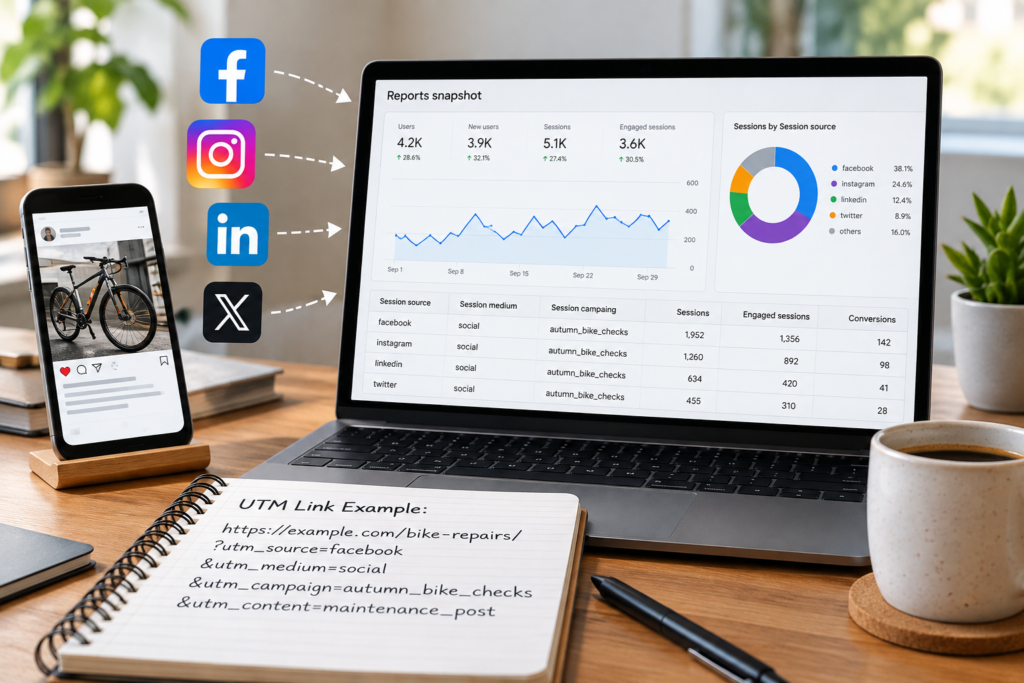
To track social media traffic, add UTM parameters to the website links you share, then review the recorded visits in Google Analytics 4. Use consistent labels for the platform, marketing channel, and campaign. Add a separate content label when you want to distinguish individual posts or link placements.
This helps answer a specific question: which shared links brought people to your website? It does not automatically tell you which visitors became customers. That requires measurement of relevant website actions and, where necessary, confirmation in your business records.
For a small business, a useful starting point is one campaign, a few tagged links, and a worksheet recording where each link was published.
What UTM Links Tell You
A UTM link is a normal destination URL with extra labels added after it. Your visitor still opens the intended page; a compatible analytics setup can use the labels to organize the visit in reporting.
Imagine a bicycle repair shop sharing its service page through a Facebook post and an Instagram profile link. Both destinations can be the same page, while the source labels differ. That gives the shop a way to examine the traffic recorded under each label.
Keep the interpretation narrow. A label describes how you prepared the link. If someone copies that link into a private message, its existing labels may travel with it. The resulting visit does not necessarily prove that the recipient opened the original post.
UTM tags also cannot measure a customer who reads a post and later calls without visiting the website.
Prepare the Website Before Tagging Links
Confirm that GA4 is collecting data from the website and that you can access the correct property. Adding parameters to a URL does not install Analytics or activate measurement.
Choose the destination according to the post. A repair-booking announcement should lead to relevant repair or booking information, where a visitor can understand the next step.
Open that page on a phone. Check that its information is current, the buttons work, and the page remains usable when URL parameters are present.
If you are unsure which public links need attention, a social media audit for a small business can help you identify the routes customers currently encounter.
Choose the Labels for Your Campaign
For a basic setup, record these fields:
- utm_source: The source you intend to identify, such as facebook or instagram.
- utm_medium: The channel label, such as social for an unpaid social link.
- utm_campaign: A shared name for the activity, such as autumn_bike_checks.
- utm_content: An optional label distinguishing a placement or variation, such as maintenance_post or profile_link.
Google’s campaign URL guidance explains the parameters and provides access to its Campaign URL Builder. Use source, medium, and campaign together rather than leaving your campaign naming incomplete.
Write Down a Naming Convention
Choose names before distributing links. For this example, the shop might use lowercase letters and underscores, retain the same campaign name across platforms, and give each placement a recognizable content label.
Avoid switching between facebook, Facebook, and fb for the same source. Parameter values are case sensitive, so inconsistent capitalization can split reporting.
Keep paid and unpaid activity distinguishable. An unpaid post and a promoted placement should not share a channel label merely because both appear on Facebook. Decide your paid campaign convention separately, taking account of any tagging already supplied by your advertising setup.
Never put customer names, email addresses, phone numbers, or other personal identifiers into these labels. Google’s guidance on avoiding personally identifiable information specifically covers campaign parameters.
Build a Tagged Social Media Link
The following example uses example.com as a demonstration destination. Replace it with your own relevant page when preparing a real link.
Start with the destination:
Then create the Facebook version:
For an Instagram profile placement, use:
The destination and campaign stay the same. The source and placement labels change because the links will be used in different places.
You can enter the fields in Google’s Campaign URL Builder instead of assembling the URL manually. If editing by hand, the first query parameter follows a question mark, and subsequent parameters are separated with ampersands. A destination that already contains a query string needs an ampersand for the next parameter, rather than a second question mark.
Match Each Link to Its Actual Placement
Put the Facebook version in the Facebook post and the Instagram version in the intended Instagram link field. Use placements that support clickable external links.
Avoid using one tagged URL everywhere when your purpose is to distinguish placements. Also remember that a permanent profile link identifies visits through that link; it cannot identify which earlier post persuaded someone to visit the profile.
Test and Record the Published Link
Open the link through the place where customers will use it. Check the entire route, including a scheduling tool, redirect, or short link if one is involved.
Confirm that the correct page opens and inspect whether the parameters survive the route to the measured page. Missing parameters deserve investigation before you rely on campaign reporting.
Keep a simple link register containing:
- Publication date and platform.
- Post or placement reference.
- Destination and full tagged URL.
- Source, medium, campaign, and content values.
- Test status and person responsible.
Add these fields to your social media content calendar for a small business so link preparation becomes part of publishing. Keeping the link beside the planned post reduces the chance of selecting the wrong campaign URL.
Find Social Media Traffic in GA4
After the links have received visits, open the correct GA4 property and select a date range covering publication.
- Open Reports.
- Find Acquisition, then Traffic acquisition.
- Change the table’s primary dimension to Session source / medium.
- Look for the source and medium you used, such as facebook / social.
- Use Session campaign to examine the campaign name. Depending on the report configuration, select it as the primary dimension or add it as a secondary dimension.
Google’s Traffic acquisition report documentation explains the available session dimensions. Navigation can differ between properties; if the report is absent, an editor or administrator may need to restore it.
For a placement-level analysis, use Session manual ad content, where available in a customized report or Exploration. Despite its name, this dimension receives the utm_content value and can distinguish the unpaid placements in this example.
Compare equivalent publication periods and check what was shared. A profile link active for a month has a different opportunity to receive visits from a post published yesterday.
Separate Website Visits From Business Results
Campaign reporting becomes more useful when you identify what a visitor should do after arriving. For the bicycle shop, that might be submitting a repair inquiry.
Arrange measurement for the completed action and test it. A click on the submit button should not be treated as a completed inquiry if the form can still fail validation or submission.
GA4 allows a collected event to be marked as a key event. Google’s explanation of key events describes how important actions can be reported. UTM tagging and action measurement are separate tasks: preparing the link does not create the event.
Even a recorded inquiry is not necessarily a booking. Check whether the request was relevant, whether the business accepted it, and whether the work went ahead before reporting customer or revenue outcomes.
Troubleshoot Missing or Unexpected Traffic
The Campaign Is Missing
Check the published URL, destination, GA4 property, and report dates first. Then investigate redirects, collection settings, and any filters affecting test visits. Consent settings and browser protections can also limit what is collected.
Do not conclude that a link failed because a standard report has not updated immediately. Google notes that data processing can take 24 to 48 hours, during which reported figures may change.
One Campaign Appears Under Several Names
Compare the actual label values. Differences in capitalization, spelling, or campaign names may explain the separate rows. Correct future links and document earlier variants when reviewing past activity.
Platform Clicks and GA4 Sessions Differ
Treat these as different measurements. Repeated clicks, incomplete page loads, analytics collection limits, and session rules can contribute to differences. Investigate the route and reporting definitions before interpreting a gap as lost customers.
A Small Campaign Is Enough to Start
Prepare two or three links for a defined activity, test their destinations, and keep the naming consistent. Review the campaign after a reasonable observation period for your posting schedule.
Your first useful finding might be that one placement sends visitors to the wrong page, or that inquiry measurement needs repair. Resolve that issue before expanding the tracking scheme. A manageable set of reliable labels gives you a clearer basis for deciding what to publish and where to send interested readers.